macOS® でのインストール
| grandMA3 ユーザマニュアル » grandMA3 onPC » macOS® でのインストール | Version 2.4 |
macOS® で grandMA3 onPC をインストールするには、以下のようにします。
- https://www.malighting.com/downloads/ からインストールファイルをダウンロードします。
- Webページの左側で grandMA3 シリーズを選択します。
- Software + Release Notes をクリックします。
- grandMA3 onPC Software for macOS, x.x.x.x をクリックして、インストーラをダウンロードします。
- EULA and Third-Party Acknowledgments ポップアップが開きます。
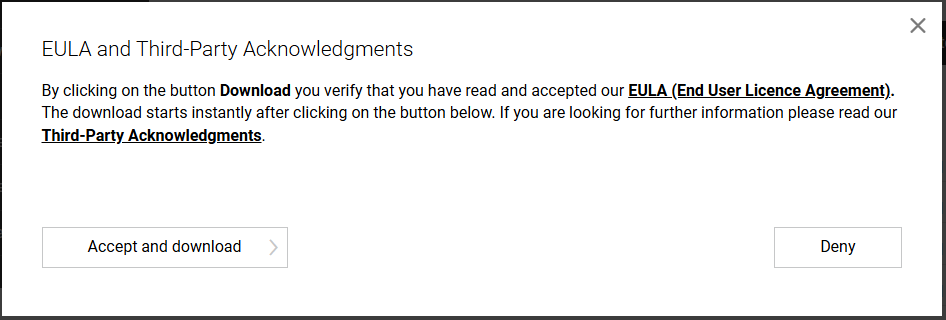
- Accept and download をクリックします。
- Downloads フォルダに移動し、grandMA3_onPC_mac_vx.x.x.x.zip をダブルクリックします。パッケージが展開され、"ma" フォルダが作成されます。
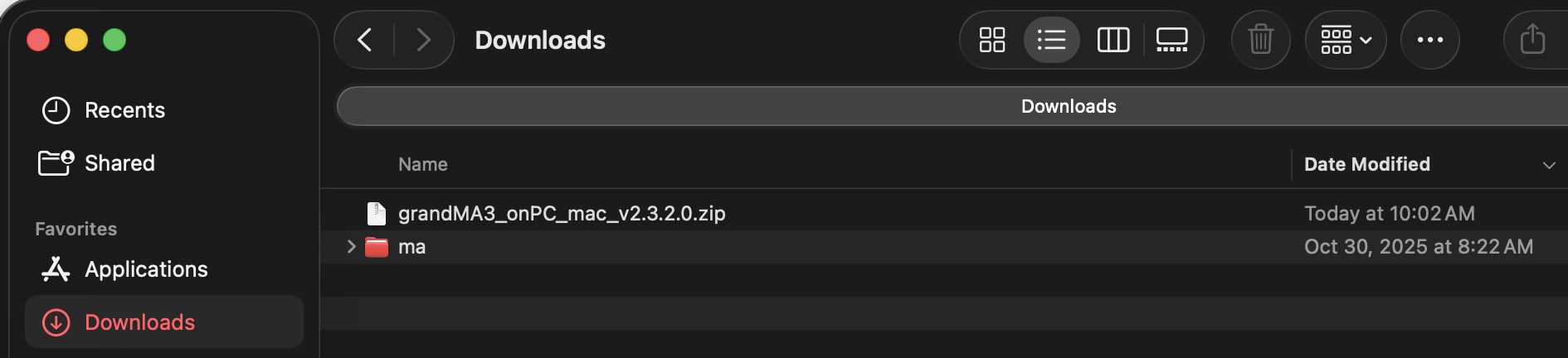
- "ma" フォルダを展開し、インストールプログラム grandMA3_onPC_x.x.x.x.pkg をダブルクリックしてください。インストーラが開きます。
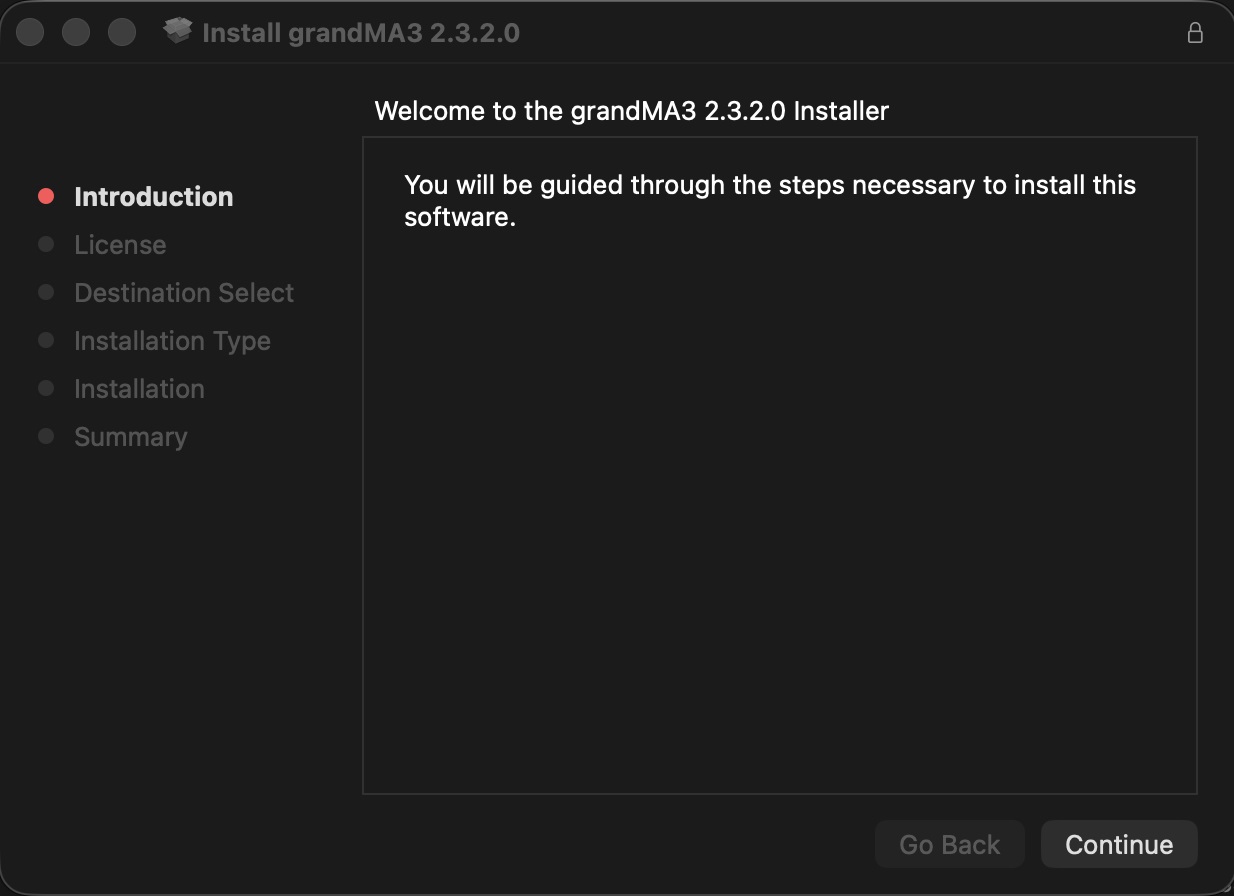
- Continue をクリックします。ソフトウェア使用許諾契約が開きます。
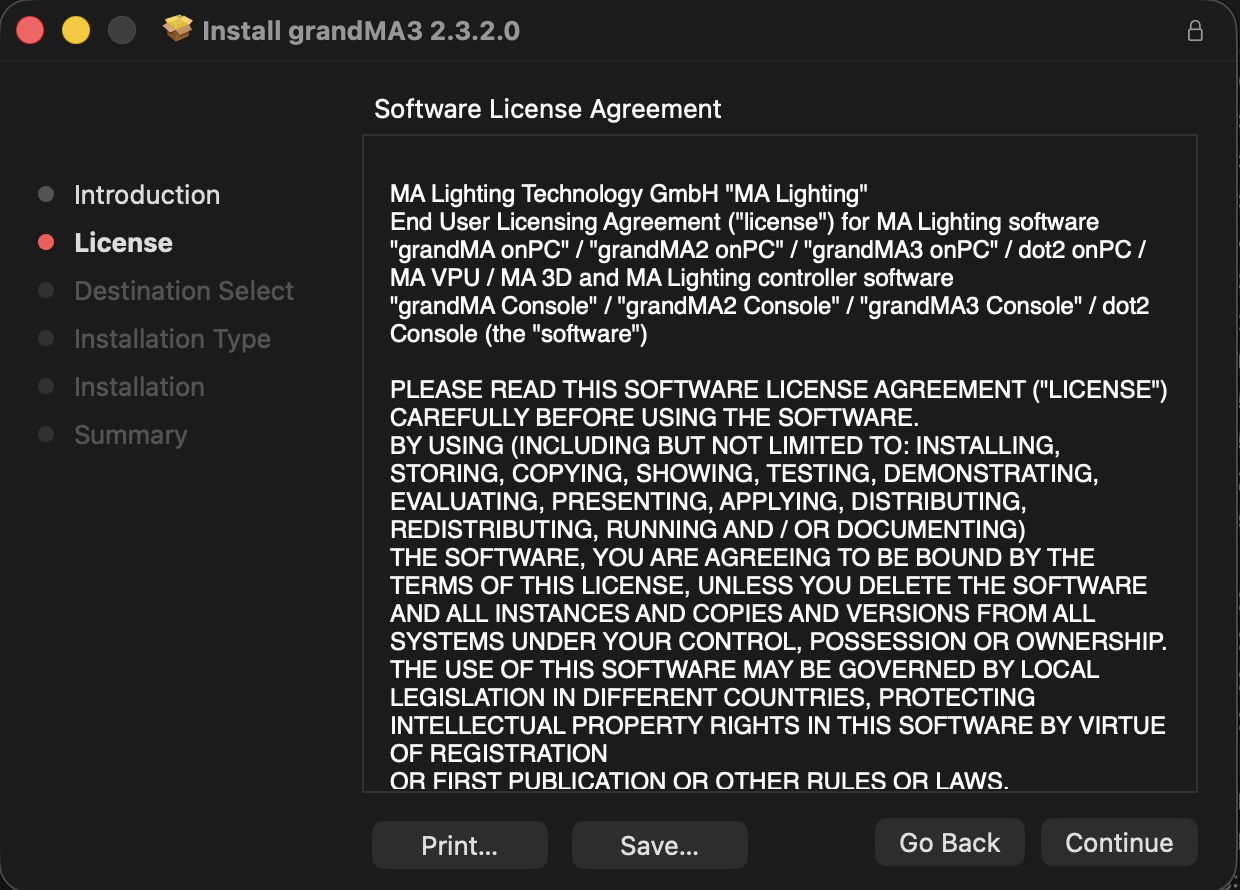
- Continue をクリックします。
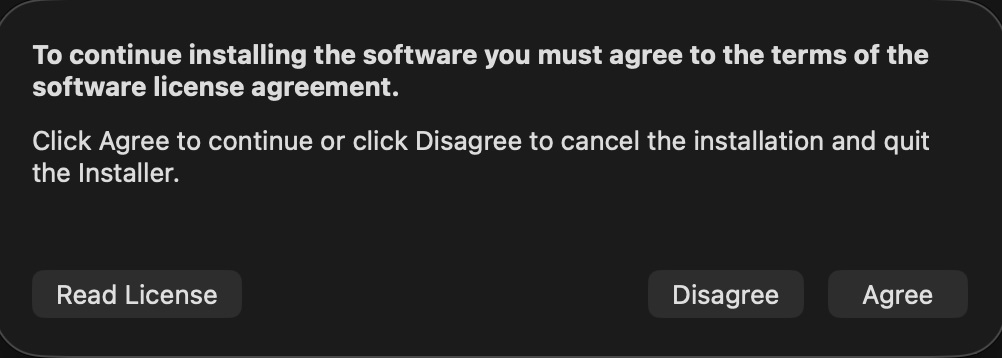
- Agree をクリックすると、インストール・ユーティリティが開きます。
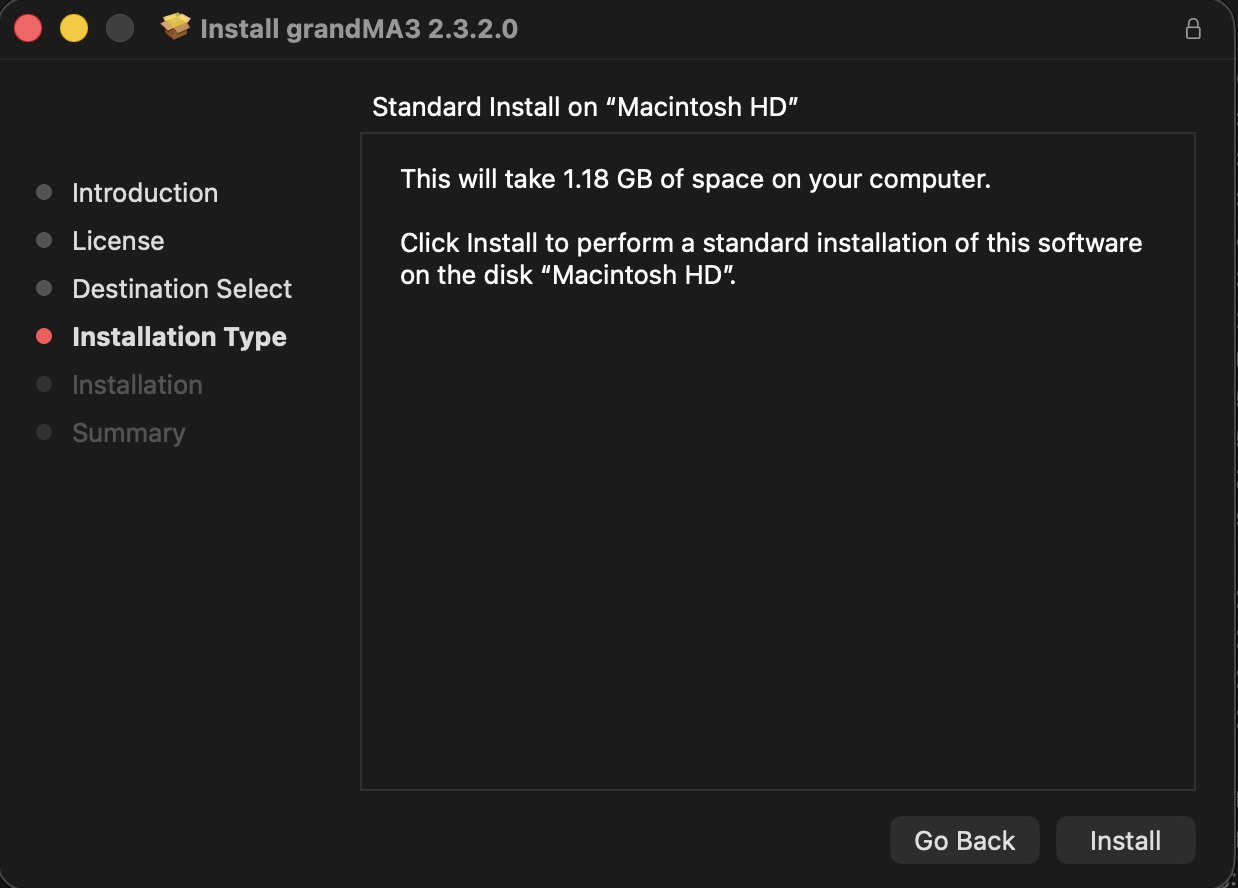
- Install をクリックして、インストールを開始します。
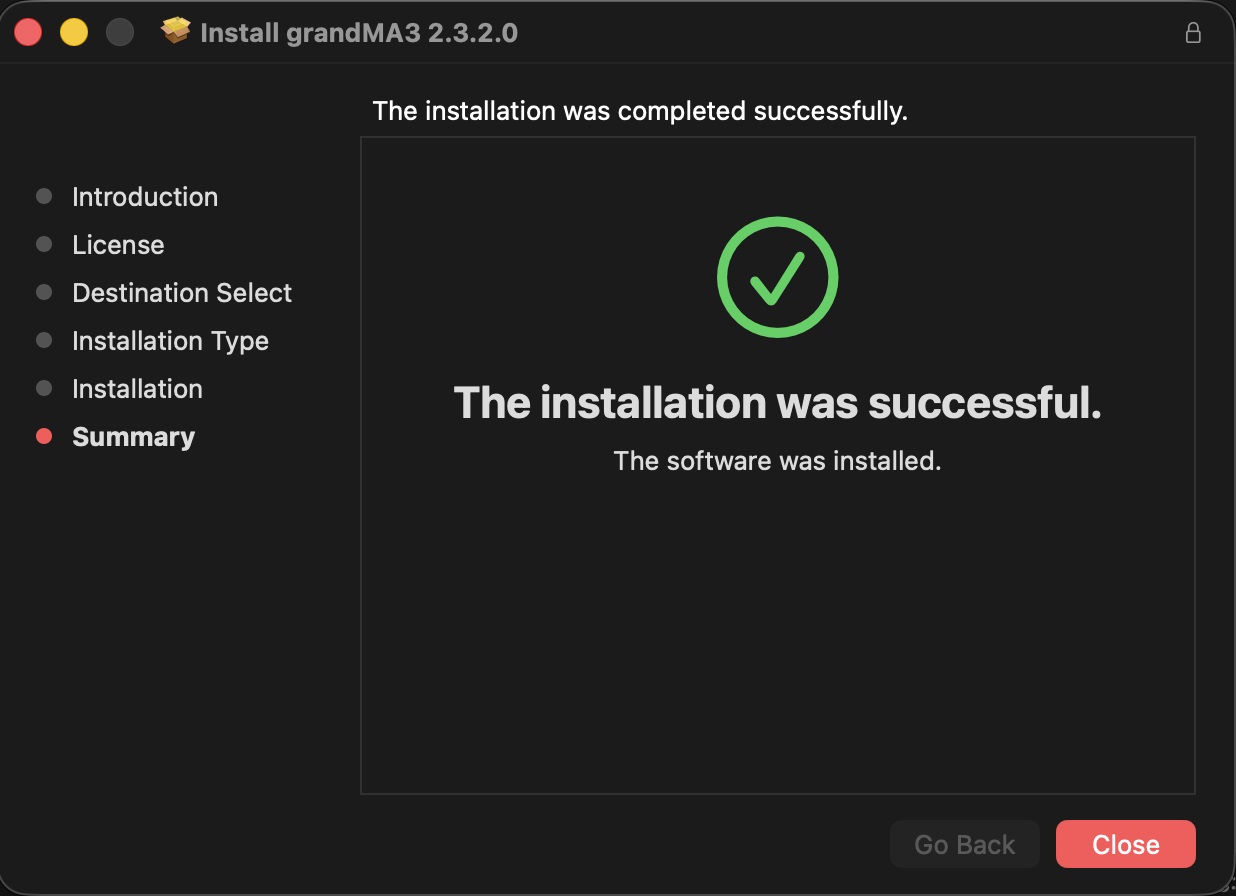
- Close をクリックします。
ソフトウェアは標準の Applications ディレクトリにインストールされます。リソースは /Users/<Username>/MA Lighting Technology にあります。
インストール先のオプション
2台以上のハードドライブまたはUSBドライブが検出されると、インストーラでインストール先を変更できます。
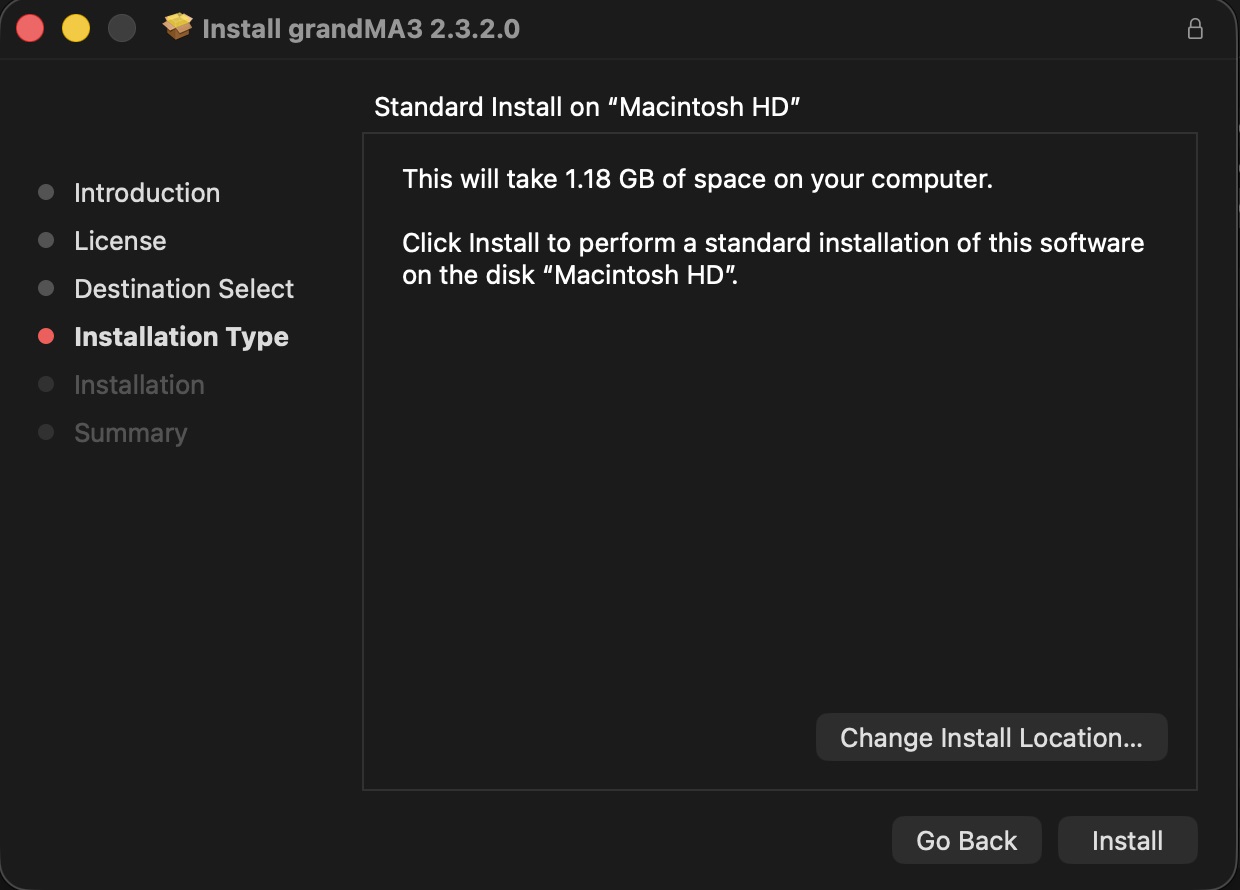
- Install Location をクリックし、インストール先を選択します。
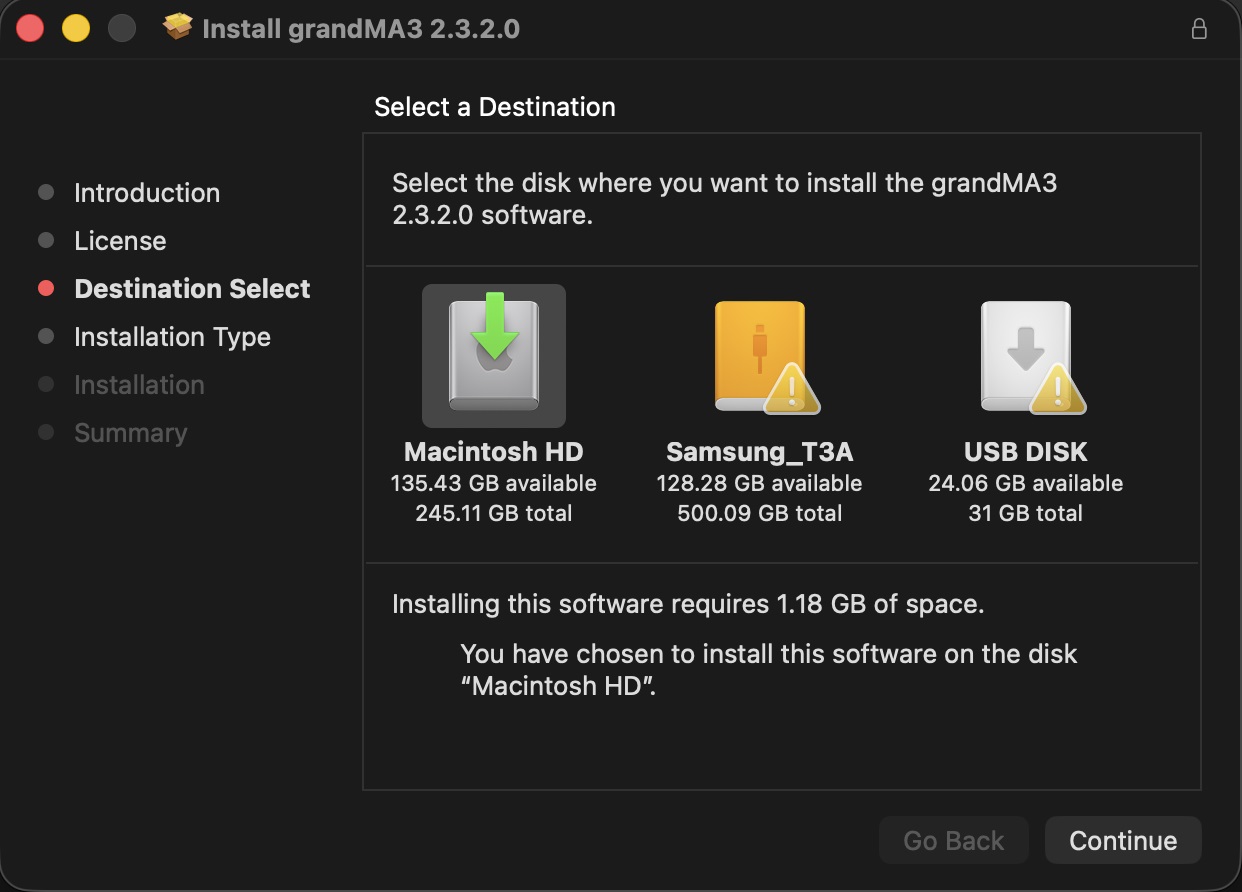
- Continue をクリックし、上述の手順11と12に従って続行します。

|
ヒント |
| インストール中に "Installation failed" というエラー・メッセージが表示された場合は、ma フォルダを Downloads フォルダの外(Desktop フォルダなど)に移動し、インストール処理を再度開始してください。 |
アプリケーションの起動
- Finder で Applications を開き、grandMA3 アイコンをダブルクリックしてください。
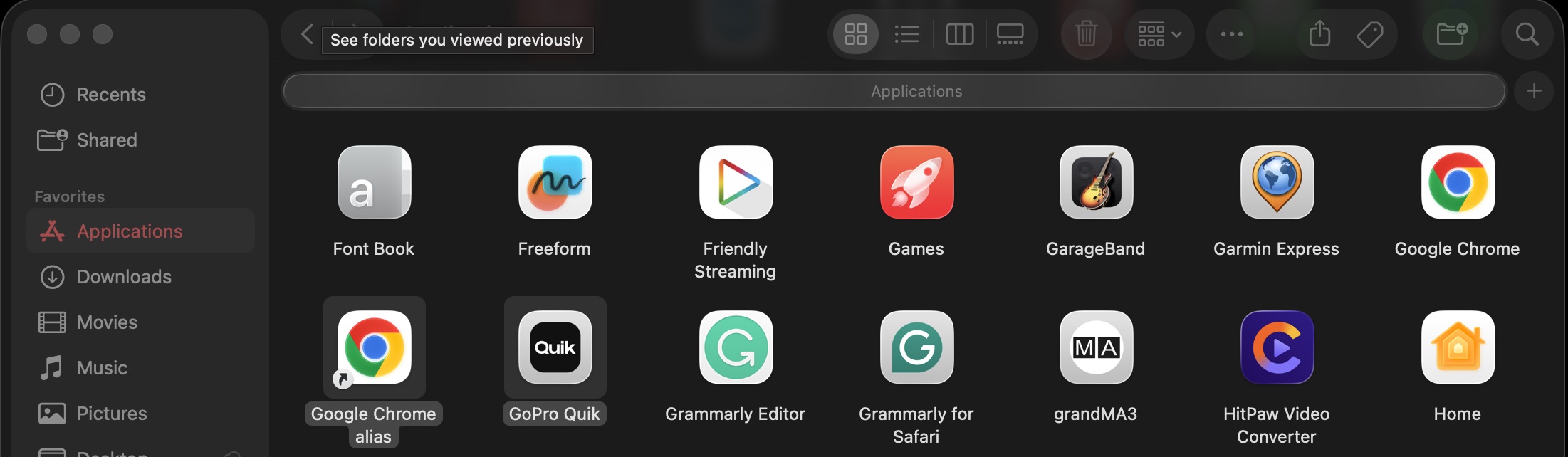
- grandMA3 ランチャーが起動します。
- 最後にインストールしたバージョンが自動的に起動します。
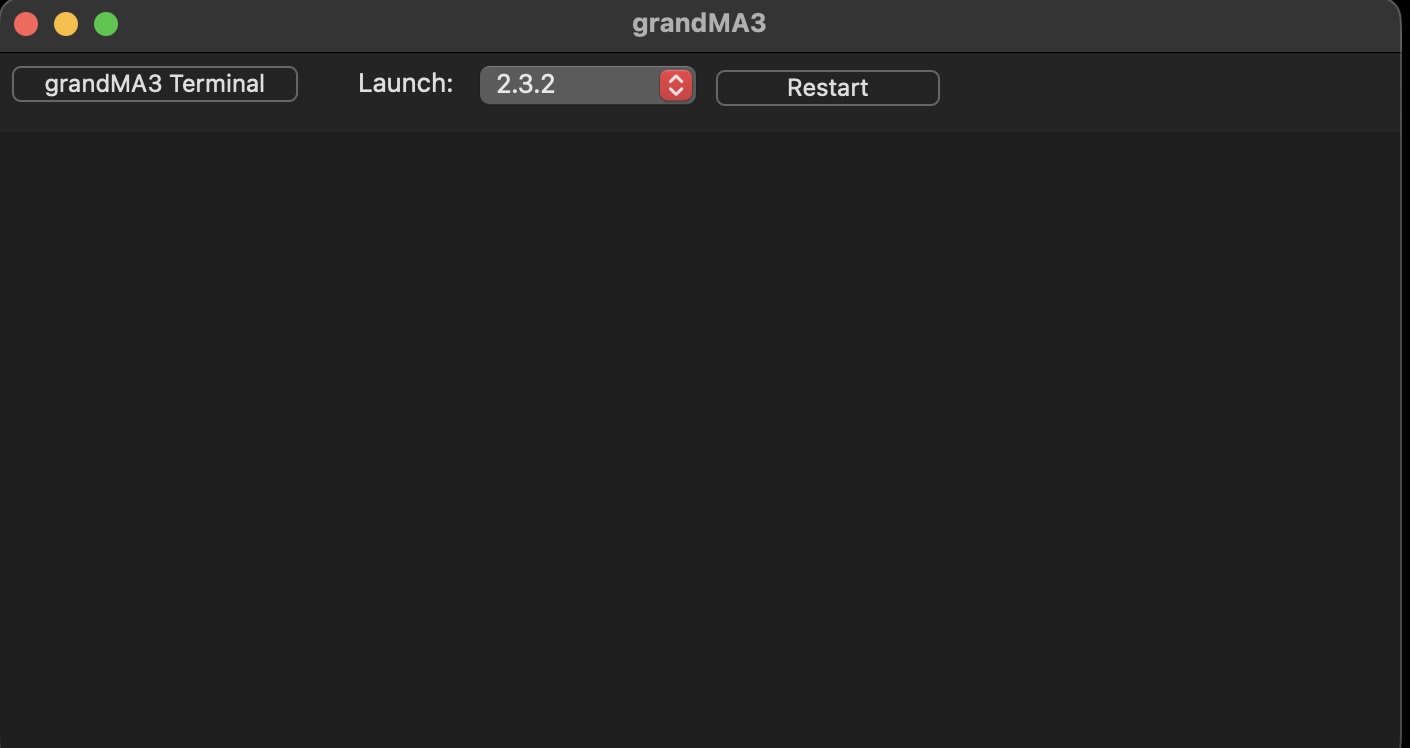
- 別のバージョンを選択するには、Launch ドロップダウンから選択してください。
- 選択したバージョンを起動するには、Restart をクリックします。
- 実行中のアプリケーションでシャットダウンを確認します。