Recipe Editor ウィンドウ
| grandMA3 ユーザマニュアル » レシピ » Recipe Editor ウィンドウ | Version 2.4 |
Recipe Editor ウィンドウ
Recipe Editor ウィンドウは、プログラマ・パート を扱う際に便利で、レシピ行の視覚化も提供します。プログラマ・パートとプログラマについては、プログラマ を参照してください。
プログラマは複数のパートを持つことができます(最大: Part Zero + 239個の個別パート = 240パート)。Recipe Editor ウィンドウには、現在のプログラマのすべてのパートが表示されます。パートにはここで直接ラベルを付けられます。
Recipe Editor Sheet とコンテキスト・エリアの列については、Recipe Editor を参照してください。
Recipe Editor ウィンドウでは、標準レシピとフェイザー・レシピを作成し、それらをキュー、キューパート、およびプリセットに直接保存できます。すべてのレシピ行を編集できます。
Recipe Editor ウィンドウは、Add Window ポップアップの Tools - Recipe Editor にあります。
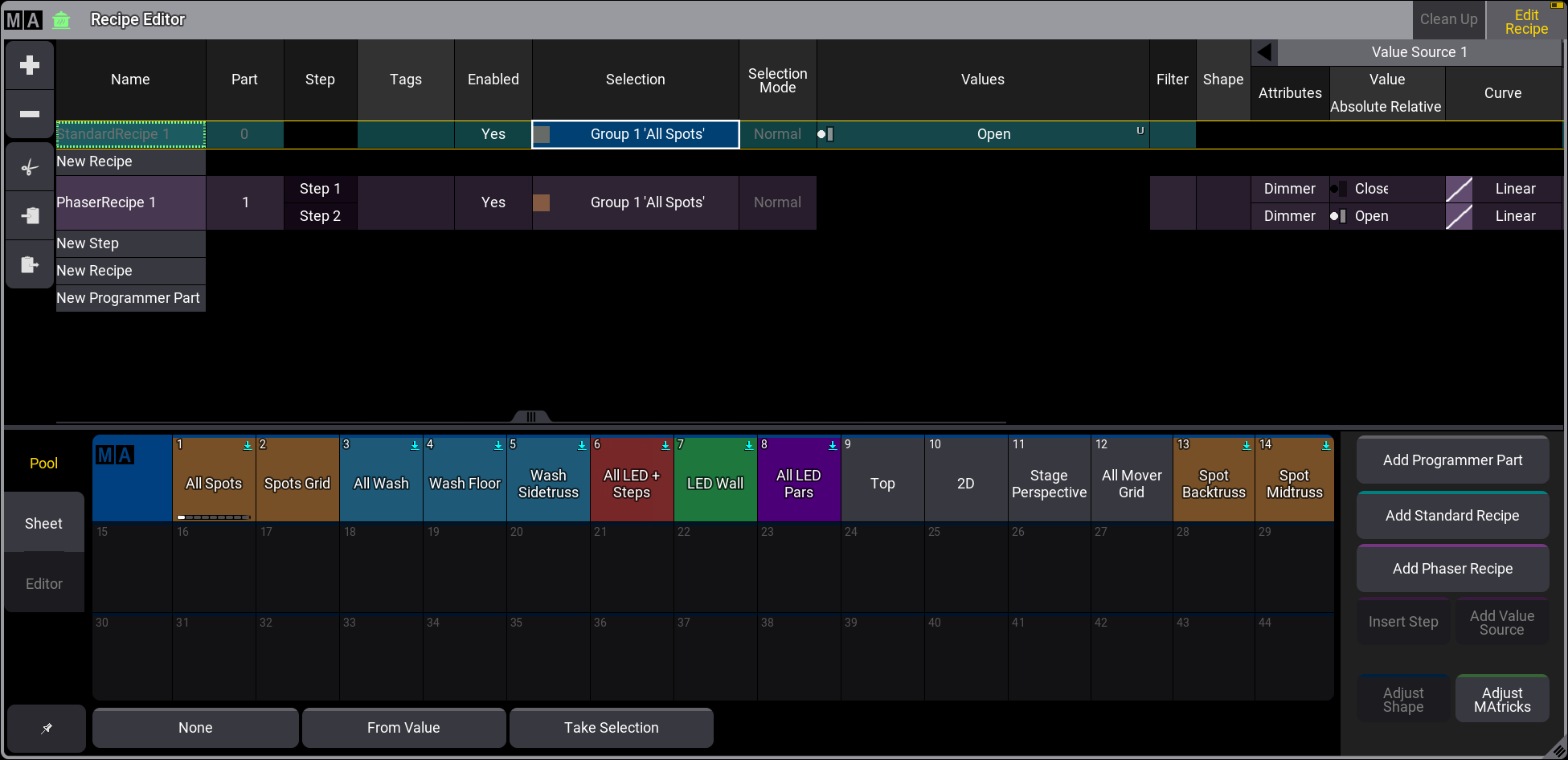
Edit Recipe モードを有効にするには、タイトルバーで Edit Recipe をタップします。詳しくは、Edit Recipe モード を参照してください。
Part をタップして、レシピ作成用に選択します。
+ と - を左側で使用すると、プログラマ・パート、レシピ、およびフェイザー・レシピのステップを追加または削除できます。どちらもシートで選択したセルを対象とします。
ツールバーの左側にある Cut ( )、Copy (
 )、および Paste (
 ) ボタンを使用して、行を編集します。
列と、ウィンドウの下部にあるコンテキスト・エリアについては、Recipe Editor を参照してください。
レシピでは、グループに同じアトリビュートに対して異なる値やプリセットを持つ複数のレシピ行がある場合、最後のエントリーだけが出力を生成します。同じフィーチャグループの複数の値やプリセットを持ち、同じセレクションを使用するすべてのレシピを削除するには、タイトルバーで CleanUp をタップしてください。出力を生成する最後のオブジェクトだけが保持されます。
例えば、Group 1 + Red + Yellow + Blue を選択してから CleanUp をタップすると、Group 1 + Red + Yellow のレシピ行は削除されます。すでに選択されているプリセットをもう一度タップして選択解除すると、対応するレシピ行も削除されます。CleanUp は、同じフィクスチャが1つのフィーチャグループの複数の項目使用されている場合にのみ有効です。それ以外の場合、このボタンはグレーアウトされます。Edit Recipe が無効な場合、このボタンは表示されません。
異なるパートのレシピが保存されるかどうかは、デスティネーションによって異なります。
- キューパートがレシピ保存先の場合、緑で表示されている選択中のプログラマ・パートのレシピ行が、対象のキューパートに保存されます(例: Store Cue Part 1)。
- キューが保存先の場合、すべてのパートが対応するキューパートとして保存されます(例: Store Cue 1)。
- プリセットが保存先の場合、緑で表示されている選択中のパートがプリセットに保存されます(例: Store Preset 1.3)。
レシピは、保存されるとすぐに Recipe Editor から削除されます。
Recipe Editor Window Settings
Recipe Editor ウィンドウの設定は、タイトルバーにあるMAロゴをタップして開けます。また、プリセットの Edit Settings ポップアップや、シーケンスの一時的な Recipe Editor ポップアップのタイトルバーにある  をタップしてもアクセスできます。
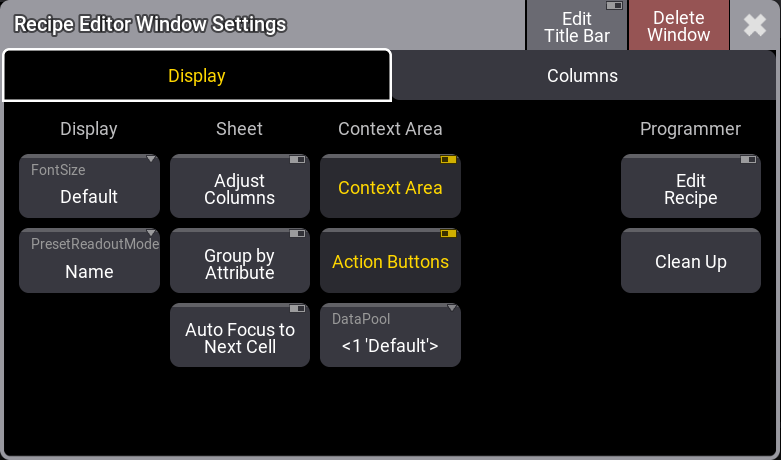
- Font Size:
ウィンドウ内のフォントサイズを選択します。スワイプボタンをクリックすると、10~32のサイズリストが表示されます。Default は18に相当します。 - PresetReadoutMode:
シートでプリセットをどのように表示するかを指定します。- Name:
プリセットの名前を表示します。 - ID:
プリセットのID番号を表示します。 - ID+Name:
プリセットのIDと名前を表示します。 - ID+Long Name:
プリセットのIDと長い名前を表示します。
- Name:
- Adjust Columns:
このオン/オフボタンを用いると、シートの列幅がウィンドウのサイズと列数に合わせて調整されます。 - Group by Attribute:
レシピ行をアトリビュートごとに整理し、グリッド・レイアウトを変更します。各レシピ行は1つのアトリビュートに対応します。同じステップに対応するプロパティは、番号付きの Step ヘッダにグループ化されます。ヘッダ左側の矢印をタップすると、グループを展開または折りたたんで、そのステップの列表示を増減できます。デフォルトでは、グループは折りたたまれています。 - Auto Focus to Next Cell:
値を選択すると、新しいセルに自動でフォーカスします。
- Context Area:
Recipe Editor でコンテキスト・エリアの表示/非表示を切り替えます。 - Action Buttons:
コンテキスト・エリアの右側にある Action ボタンの表示/非表示を切り替えます。
プログラマ設定は Recipe Editor ウィンドウでのみ使用できます。
- Edit Recipe:
Edit Recipe モードを有効にします。 - Clean Up:
同じセレクションを使用し、同じフィーチャグループの複数のプリセットを持つすべてのレシピを削除します。これは Edit Recipe が有効な場合にのみ表示され、クリーンナップ対象がある場合に機能します。