グループの編集
| grandMA3 ユーザマニュアル » グループ » グループの編集 | Version 2.4 |
グループを編集するには、以下のいずれかの方法を用います。
- EditSetting キーワード を用います。
- Edit を2回押してから Group プールのグループをタップします。
- プール・オブジェクトで Swipey コマンドを開き、Edit Setting を選びます。
Edit Group ポップアップが開きます。
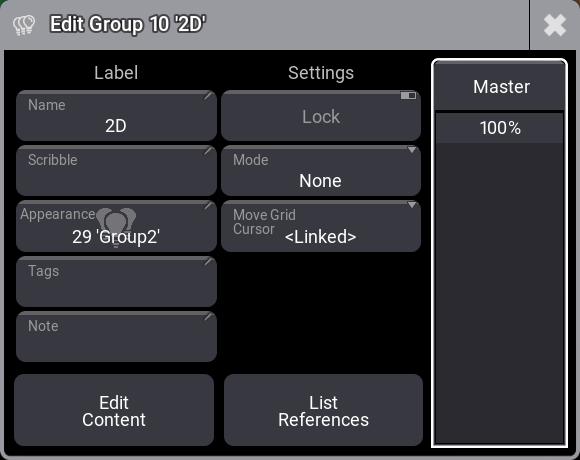
エディタには、Label と Settings という2つの列があります。
グループのレベルを設定するには、右側の Master フェーダを使用します。詳しくは Group Masters を参照してください。
以下では、Label 列の設定について説明します。
- Name:
グループ名です。名前を変更するには、Label コマンドを用います。詳しくは Label キーワード を参照してください。 - Scribble:
既存のスクリブルを割り当てることも、この欄を編集して新規作成することもできます。詳しくは スクリブル を参照してください。 - Appearance:
既存のアピアランスを割り当てることも、この欄を編集して新規作成することもできます。詳しくは アピアランス を参照してください。 - Tags:
グループには1つ以上のタグを割り当てることができます。この欄を編集すると Edit Tags ポップアップが開き、そこでタグの割り当てと作成を行えます。詳しくは タグ を参照してください。 - Note:
グループにはノート(注記)を設定できます。詳しくは ノート を参照してください。
以下では、Settings 列の設定について説明します。
- Lock:
これをオンにするとグループがロックされ、グループ設定の変更や内容の編集ができなくなります。ただし、フィクスチャ・セレクションやレシピでは引き続き使用できます。 - Mode:
各グループには、None を含む5種類のモードのいずれかを設定できます。その他のモードは、ディマー出力の制限または追加に使用できます。詳しくは グループ・マスター を参照してください。 - Move Grid Cursor:
この設定は、グループを呼び出した後にグリッドカーソルがどのように移動するかを指定します。詳しくは Selection Grid および ユーザ設定 を参照してください。
Edit Content をタップすると、グループの編集モードが有効になります。これは、セレクションとグリッド位置を編集するために使用します。詳しくは後述を参照してください。
List References をタップすると、グループの参照と依存関係の一覧を表示する Info ポップアップが開きます。
グループへのフィクスチャ追加
グループにフィクスチャを追加するには、以下のいずれかの方法を用います。
- 最初の方法:
- Edit を押してから、Group プール・オブジェクトをタップします。Fixture Sheet と Selection Grid の枠が緑になります。
- 追加したいフィクスチャを選択します。
- Update を押すと、Update ポップアップが開きます。
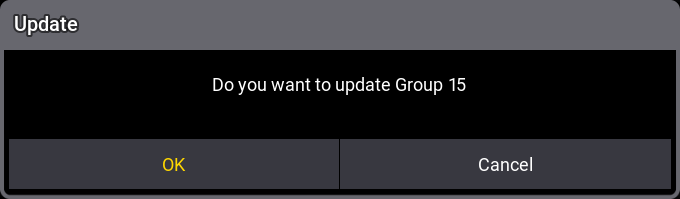
Update ポップアップ - OK をタップしてグループの更新を確認するか、Cancel で操作を中断します。
例を見るには、以下の動画をタップしてください。
- 2番目の方法:
- 追加したいフィクスチャを選択します。
- Store を押します。
- Group プール・オブジェクトをタップしてフィクスチャを追加します。Store to Group ポップアップが開きます。
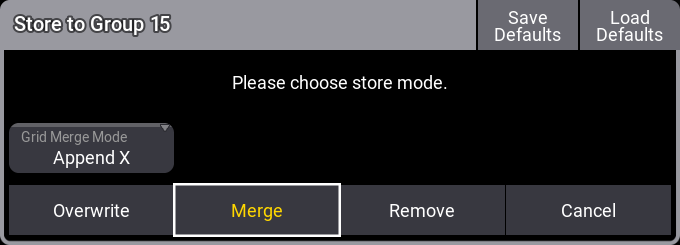
Store to Group ポップアップ - グループを更新するには Merge をタップし、操作を取り消すには Cancel をタップします。
例を見るには、以下の動画をタップしてください。
- 3番目の方法:
- Group プール・オブジェクトで Swipey コマンドを開き、Edit Setting を選びます。Edit Group ポップアップが開きます。
- Edit Content をタップします。Fixture Sheet と Selection Grid の枠が緑になります。
- 追加したいフィクスチャを選択します。
- Update を押すと、Update ポップアップが開きます。
Update Group ポップアップ - グループを更新するには OK をタップし、操作を取り消すには Cancel をタップします。
例を見るには、以下の動画をタップしてください。
グループからのフィクスチャ削除
グループから一部のフィクスチャを削除するには、以下のいずれかの方法を用います。
最初の方法:
- Group プール・オブジェクトで Swipey コマンドを開きます。Edit Group ポップアップが開きます。
- Edit Content をタップします。Fixture Sheet と Selection Grid の枠が緑になります。
- - を押してから、グループから削除するフィクスチャを選択します。
- Update を押すと、Update ポップアップが開きます。
Update Group ポップアップ - 変更を保存するには OK をタップし、操作を取り消すには Cancel をタップします。
例を見るには、以下の動画をタップしてください。
2番目の方法:
- Edit を押してから、Group プール・オブジェクトをタップします。Fixture Sheet と Selection Grid の枠が緑になります。
- - を押してから、グループから削除するフィクスチャを選択します。
- Update を押すと、Update ポップアップが開きます。
Update Group ポップアップ - 変更を保存するには OK をタップし、操作を取り消すには Cancel をタップします。
例を見るには、以下の動画をタップしてください。
3番目の方法:
- 削除するフィクスチャを選択します。
- Store を押してから、Group プール・オブジェクトをタップします。Store to Group ポップアップが開きます。
Store Group ポップアップ - グループを保存してフィクスチャを削除するには Remove をタップし、操作を取り消すには Cancel をタップします。
例を見るには、以下の動画をタップしてください。